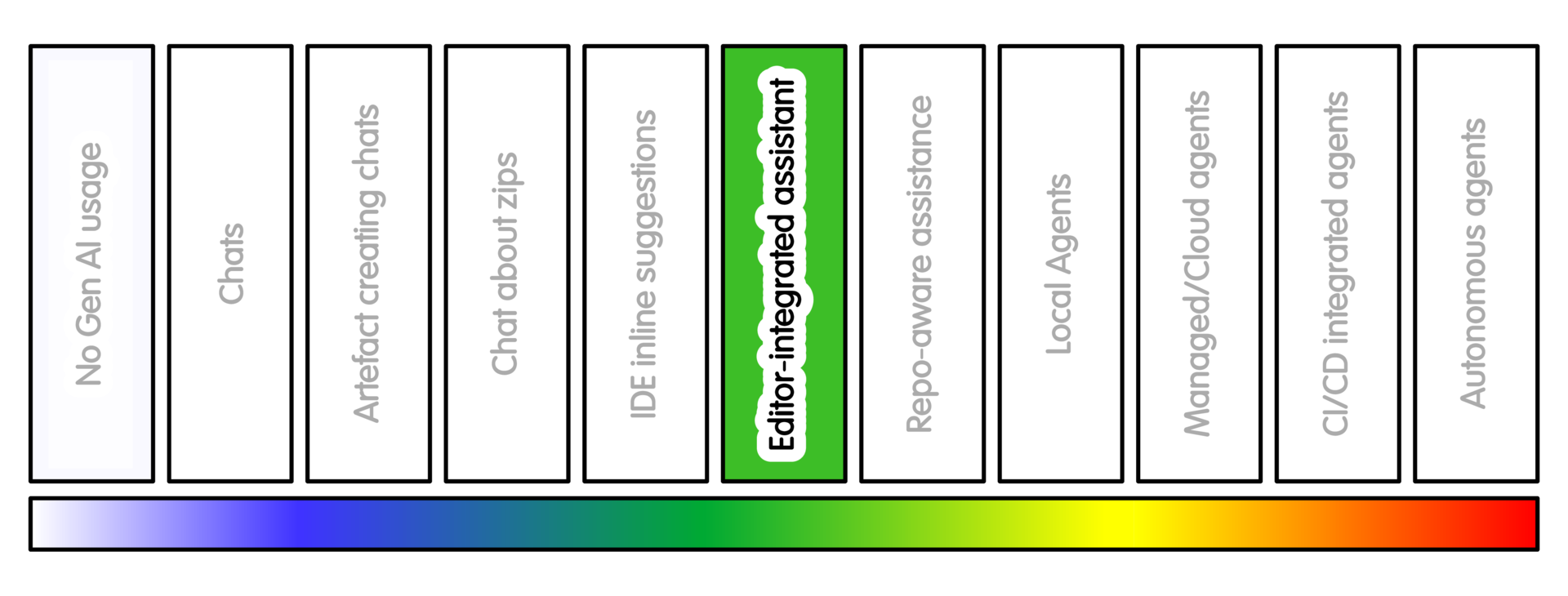
Overview
Some editor-integrated assistants can make changes to files for you. They do more than suggest the next line.
At this level, the assistant may edit files, but should not be assumed to control version control. You should still be using version control yourself.
Some tools can run Git commands. If so, extra care is needed. This moves closer to agentic behaviour, even if the tool appears inside an editor.
Depending on the tool, they may add tests, refactor a function, improve docstrings, update type hints, explain a symbol, or make a small change across related files.
Examples include VS Code with GitHub Copilot Chat, Edits or agent features; Cursor’s assistant or agent modes; Codex in an IDE; Continue; Cline; Zoo Code; and JetBrains AI Assistant.
These tools vary: some suggest edits, or apply patches and some can run commands and interact with version contro. This may require extra guardrails.
This is a step up from autocomplete. The tool may produce a patch: a set of changes you must review.
Use this only when the change is bounded enough to inspect. You need to compare the old version with the new version. If you cannot inspect the change, this is the wrong level of intensity.
Getting Started
Use a fresh branch, or preferably a separate local checkout as described in the cross-cutting practices. State the task narrowly.
Ask for a plan before applying changes, if the tool supports that. Do not start with broad editing - like “clean up this module”.
Prefer:
- “add tests for this function”
- “extract this duplicated block without changing behaviour”
If the tool offers modes such as “ask”, “plan”, “edit”, “agent” or “act”, start with ask or plan mode.
Using the least powerful mode that works allows you to retain greater control.
After the edit, inspect the diff before committing anything. If the tool can run commands, inspect the diff before letting it run broad checks.
If you are unfamiliar with branches or diffs, review the relevant RSQKit pages first before using this mode of usage. Briefly - a branch is a separate line of work; a diff is the list of changes between two versions; reviewing the diff is how you check what the assistant actually changed.
The basic loop is:
- describe the task
- ask for a plan
- approve or correct the plan
- apply a small edit
- inspect the diff
- run checks
- commit only what you understand
Sample Appropriate Practice
Some sample prompts at this stage might look like this:
-
“Add pytest tests for this function. Do not change implementation code. Include edge cases for empty input and invalid units.”
-
“Refactor this function to reduce duplication. Preserve public behaviour. Show the intended changes before editing.”
-
“Update these docstrings so they match the current function signatures. Do not change code behaviour.”
-
“Suggest a plan for adding type hints to this file. Do not edit until I approve the plan.”
-
“Split this broad refactor into smaller reviewable steps. Do not edit files yet. Explain what each step is intended to preserve.”
Concerns/Risks
The assistant may change more than you asked for.
This can happen because the tool is working at patch level, not just line level. These changes can be easy to miss if they are mixed into a larger patch. Broad prompts such as “clean this up” or “make this better” are risky. They give the tool room to make design decisions without knowing the research context.
It may rename variables, alter defaults, change numerical tolerances, move code, update documentation inaccurately, alter formatting, or add dependencies.
The main risks are scope creep and semantic drift. Scope creep means the assistant changes files or behaviour outside the task. Semantic drift means the code still looks reasonable, but now means something different. This matters especially in research software.
Generated documentation can become misleading. It may describe what the assistant thinks the code should do, rather than what the code actually does.
If the tool can run commands or use Git, there is an additional risk. It may change files, stage changes, switch branches or alter local state in ways that are not obvious from the conversation.
The concern is not only whether the assistant produced a useful edit. The concern is whether you can still see, understand and own the change.
Crucially, a patch can look tidy while changing the scientific meaning of the code.
Quality Practice
Review the change as a patch, not as a conversation.
Use tests before and after the edit.
For refactoring, add or identify behaviour-preserving tests first. For documentation, check that generated prose describes actual behaviour. It should not merely describe intended behaviour.
For scientific code, require an example that focusses on the domain, a reference output or reviewer who understands the underlying method.
Before accepting the edit, check:
- what files changed
- whether only expected files changed
- whether behaviour changed
- whether tests were added or updated
- whether defaults, tolerances or dependencies changed
- whether documentation still describes actual behaviour
Watch for small “helpful” changes slipped into a larger edit: renamed variables, changed defaults, altered tolerances or added dependencies.
Use version control deliberately as part of this. Commit small atomic changes where practical. Consider asking the AI to break broad refactoring into smaller steps to make such changes easier to understand.
Work on a branch or local checkout. If the assistant can run git commands, disable git remotes for the local checkout (see cross cutting practices for detail).
Before committing, consider whether you understand the changes adequately. You will need to be able to describe not only what changed generally, but what specifically changed and why before doing so. If you can’t do this, then you have lost control of the changes.
The commit message and rationale should be owned by a specific person, even if the assistant drafts text.
The important thing is that a person can explain why the change is correct, and how it was checked.
AI Intensity Considerations
Stay at this level when the assistant is helping with small, local changes that you can review as a single coherent patch. This is useful for adding tests, updating docstrings, simplifying one function, or making a small change across a few closely related files.
Consider lower intensity AI practices when:
- The assistant is making changes faster than you can review them.
- The work shifts to mainly learning, debugging or understanding.
In those cases, conversational interaction or autocomplete may be more appropriate.
Perhaps consider more intense AI practices when the task depends on wider project structure. This might include call paths, configuration, tests, documentation, packaging, or behaviour spread across several files. This increases intensity because the task needs broader context. This is only useful if you can still review the result In that case, repository-aware assistance may be more useful than local editor edits.
Do not increase intensity simply because the tool offers a more powerful mode - your judgement is more important than speed. This is especially the case where changes have greater impact on the research.
Training

Michael Sparks
The University of Manchester / Software Sustainability Institute
Michael Sparks, "Editor-integrated local assistant (intensity 5)". everse.software. http://everse.software/RSQKit/editor_integrated_local_assistant .