Overview
This is sometimes referred to as “autocorrect on steroids”. It has all the benefits this phrasing suggests as well as many of the problems this phrase can imply.
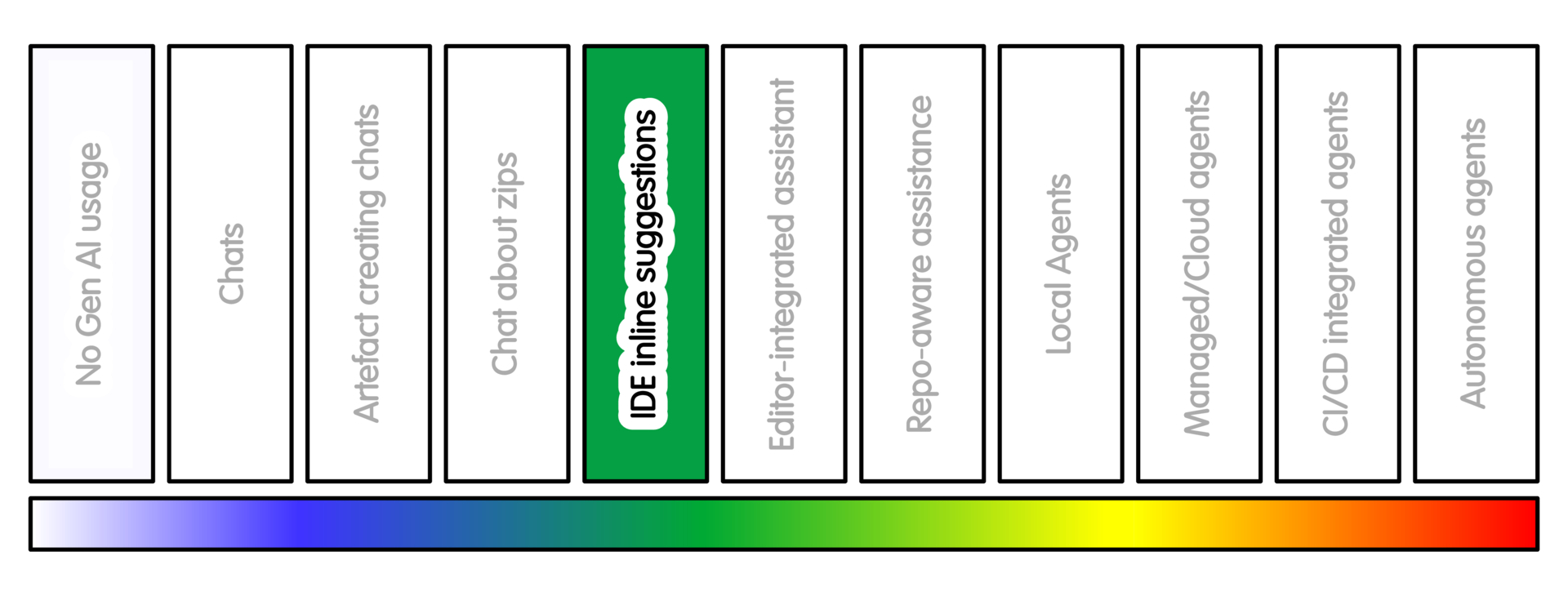
Some editors and IDEs can show AI-generated suggestions while you type. These may appear as greyed-out completions, suggested lines, function bodies, comments, tests or repeated patterns. Not every IDE has this feature. Some projects or institutions may disable it.
Common examples include GitHub Copilot in Visual Studio Code and other supported editors, Gemini Code Assist in VS Code and JetBrains IDEs, Cursor, Continue, JetBrains AI Assistant, and editor-specific plugins. The exact behaviour depends on tool, editor, plan and configuration.
Where available and approved, inline suggestions can be useful for boilerplate, repetitive patterns, simple tests, straightforward docstrings, API usage examples and small local transformations.
They are less suitable for scientific design, security-sensitive logic, numerical methods, or anything where hidden assumptions matter more than syntax.
Getting Started
Enable the tool only in repositories where its use is allowed. Start with non-sensitive, low-consequence files such as documentation, tests or small utility modules. Treat suggestions as typed drafts, not accepted truth. Reject suggestions that introduce unexplained dependencies, broad behaviour changes or code you cannot explain.
Check what context the tool may use. Some tools use the current file. Some use open files. Some use broader workspace or repository context.
This matters if the project contains private code, unpublished work, sensitive data, or material that must not be shared with the tool.
Sample Appropriate Practice
Suitable uses include:
- Accepting a repeated test case after you have written the first one yourself
- Completing simple argument parsing after the behaviour is already decided
- Drafting a docstring that you then check against the actual code
A poor use is letting autocomplete decide how important behaviour should work.
Examples include missing data, units, thresholds, random seeds, file deletion, authentication, network access or dependency selection.
Useful practice patterns include:
- Write the test name yourself, then let the tool suggest the body
- Write the function signature and expected behaviour yourself
- Use suggestions for repetitive patterns, not scientific judgement
All of these need checking for correctness. In the same way autocorrect can create problems and misunderstandings this form of auto-correct has similar issues. If you don’t understand the generated code, work through or reject the code until you understand how to change it.
Concerns/Risks
The main risk is passive acceptance.
Because autocomplete appears while you type, it can feel like your own code. This can create false familiarity. You can inadvertently accept code without really understanding whether it is correct.
Inline suggestions may introduce dependencies, global state, network access, random behaviour, inefficient patterns or security-sensitive mistakes.
Because the suggestion is accepted inside the editor, it may not feel like an external contribution needing review.
That makes it easier for weak code to enter the project quietly.
Quality Practice
Use autocomplete for typing assistance, not for deciding behaviour.
Be especially careful where the code makes decisions about data, state or side effects. Some examples may include data parsing, missing values, units, coordinate systems, statistics, and numerical tolerances. Some may be less reversible like authentication, file deletion, network access and dependency choices.
Run tests frequently. Inspect changes carefully, since tests may not catch accidental behaviour changes.
While all changes need review, take extra care over security-sensitive code. The reason is it’s very easy to treat these changes as “what you typed” - but this can sidestep the thinking process.
It is important to turn suggestions off when they distract from learning, debugging or careful reasoning. A reasonable alternative is to switch interaction mode.
AI Intensity Considerations
Stay at this level when autocomplete is helping, and you can still understand every suggestion you accept.
Consider a lower intensity practice when suggestions start to move faster than your understanding. This may happen when you are learning, debugging carefully, or trying to reason through unfamiliar code. In those cases, switch suggestions off or return to conversational interaction.
A reasonable alternative is to switch interaction mode rather than simply accept or reject suggestions. For example, instead of accepting an inline completion, ask a chat tool to explain the code, list assumptions, or suggest tests.
Consider a higher intensity practice when inline suggestions are too syntactic or too local. This may be the case when the task needs extensive multi-line edits, a change across several files, help with documentation, or understanding of wider project structure.
Do not move up simply because the tool offers a more powerful mode. Move up only when the task needs it, and when you can still review the result.
Training

Michael Sparks
The University of Manchester / Software Sustainability Institute
Michael Sparks, "IDE autocomplete and inline suggestions (intensity 4)". everse.software. http://everse.software/RSQKit/ide_autocomplete_and_inline_suggestions .